
Desktop widgets for Windows turn the tools you reach for every day into something you can see and use in one click. Instead of opening a browser, searching for a currency rate, or hunting for the right app to merge two PDFs, you keep small, focused tools docked on your screen. This guide explains what widgets are, which ones are worth having, and how to set up a clean, fast widget panel on your PC.
What are desktop widgets?
A desktop widget is a small panel that shows one piece of information or does one job: a clock, a calculator, a converter, a to-do list. Widgets are built to be glanceable. You do not "open" them in the usual sense. They are simply there when you need them, and out of the way when you do not.
The idea is not new, but it is useful again. Most of us juggle many tabs and apps during the day, and every switch costs a few seconds of focus. A good widget removes the switch.
Does Windows have built-in widgets?
Windows 11 includes a Widgets board that you can open with Win + W. It is mostly built around news, weather and a small set of Microsoft services, which makes it handy for a quick glance but limited if you want practical tools such as converters or a document utility. Windows 10 has no equivalent widget panel for everyday tools.
That gap is why many people look for a dedicated widget app: something that sits on the edge of the desktop and gives you the utilities you actually use at work.
Which widgets are actually worth having?
Not every widget earns its place. The best ones save you from repeating the same small task again and again. These are the categories that tend to pay off:
- Currency converter: check a rate in seconds without leaving the document you are working on.
- World clock: keep several time zones in view when you work with people in other countries.
- Unit converter: convert weight, length, volume and temperature without opening a search page.
- PDF merger: combine documents into one file without installing a large PDF suite.
- Public holidays: see which days are bank holidays in another country before you schedule a call or a delivery.
- To-do list: keep a short task list visible all day.
Pick three or four that match your week. A crowded panel defeats the purpose.
Desktop widgets for logistics and shipping professionals
If you work in logistics, freight or shipping, small utilities matter even more, because the same checks come up all day. Useful widgets for this kind of work include:
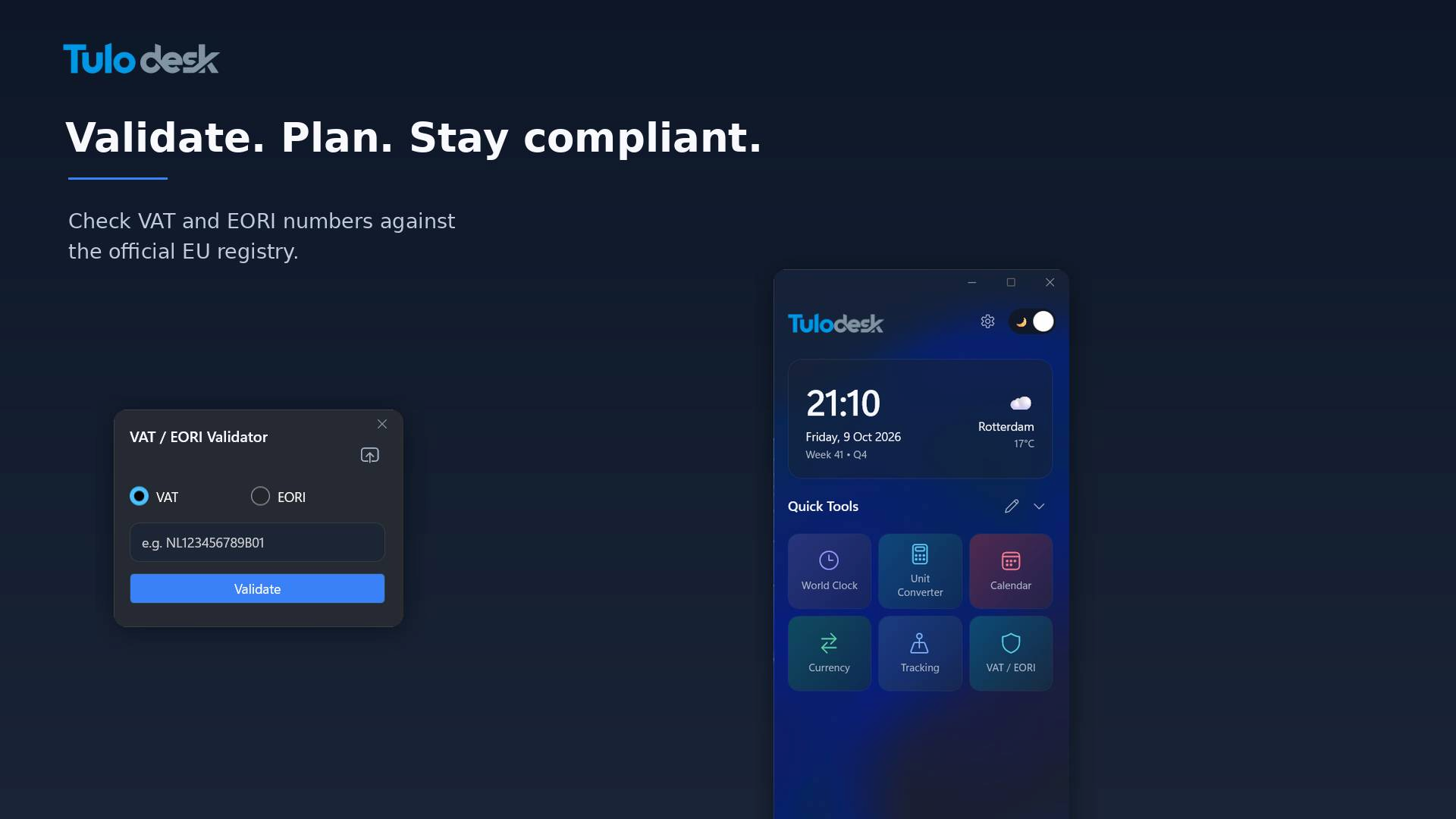
- A VAT and EORI number validator, so you can confirm a customer or supplier before you ship.
- A tracking log, to keep the shipment numbers you are following in one place and open the carrier page in a click.
- A world clock, because cut-off times and pick-ups depend on the time at the other end.
- A currency converter and a unit converter for quotes, invoices and packing lists.
- A public holiday lookup, to avoid planning a delivery on a closed day.
Each of these takes only seconds on its own. Together, across a working week, they add up to a real saving.
How to choose a widget app
Before you install anything, check four things:
- Privacy: does it need an account, and where is your data stored?
- Weight: does it run quietly in the background, or slow your PC down?
- Cost: is it free, and are there ads inside the app?
- Fit: does it offer the tools you will really use, and does the developer keep adding more?
Meet TuloDesk: everyday tools, always within reach
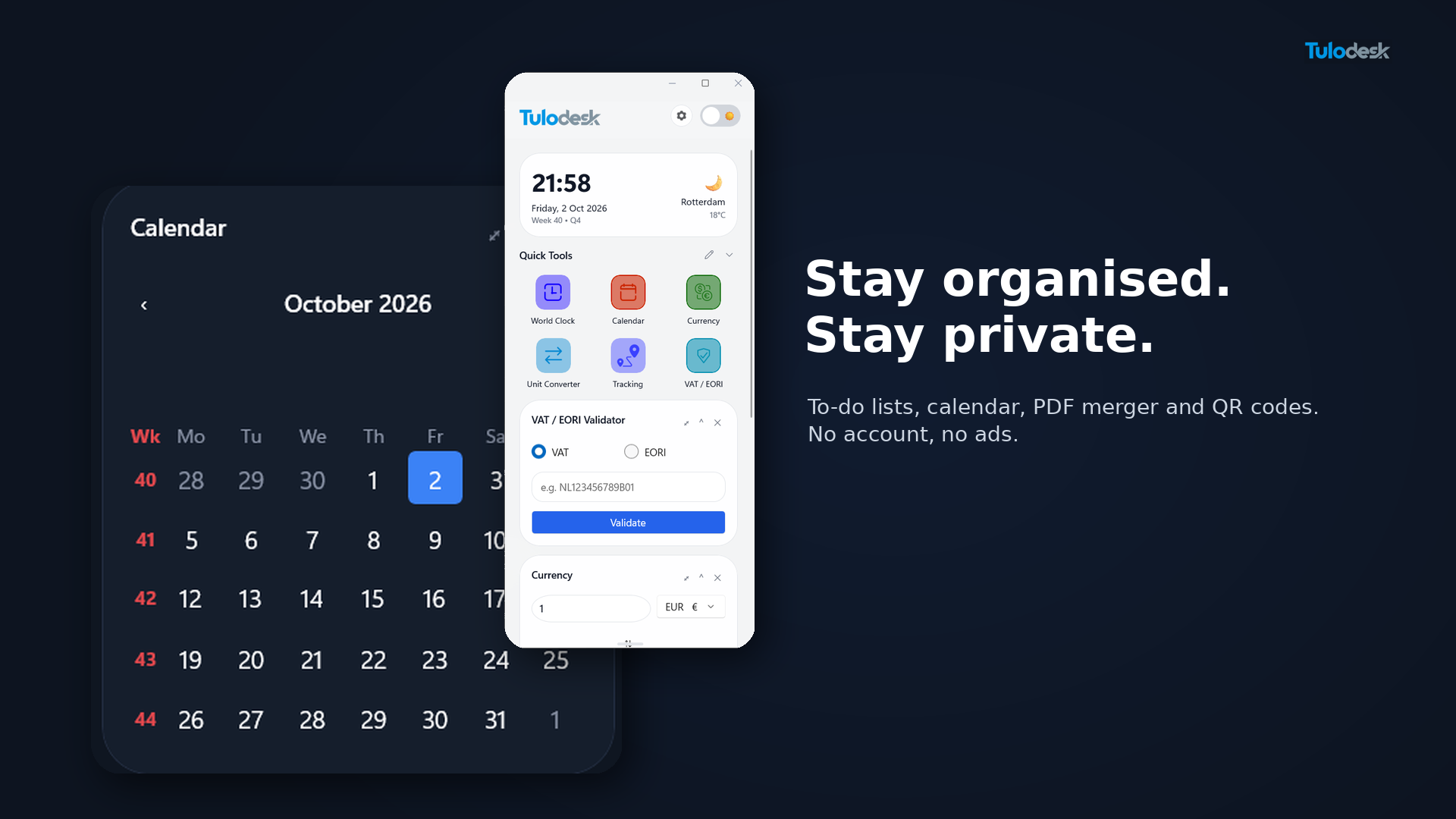
TuloDesk is a free widget toolkit for Windows 10 and 11. It docks neatly to the edge of your desktop and keeps your everyday tools one click away: currency conversion, world clocks, unit conversion, a PDF merger, a VAT and EORI validator, public holidays, a tracking log, a to-do list and more. New tools are added over time.
A few things set it apart:
- Your data stays on your PC. TuloDesk has no accounts, no sign-in and no ads.
- Tools that need live information, such as exchange rates or the weather, only send the small lookup request they need.
- It is built for people who do real work on their computer, with logistics and shipping professionals in mind.
How to get started
- Open the Microsoft Store on your Windows PC and search for TuloDesk, or use the download button on tulodesk.com.
- Install it and open the side widget.
- Choose the tools you want to keep on screen and rearrange them to suit your day.
Give it a week. If a tool saves you a trip to the browser a few times a day, it has paid for itself, and TuloDesk is free.